Categories
Outsourcing Insights

Buy or Rent: Where to Get Your Equipment for your Home Office?

One of the biggest expenses for any business is equipment — tables, chairs, laptops, furniture, fixtures, and the list goes on. And it doesn’t come cheap. It can go for a couple of hundreds to thousands of dollars for basic operational equipment.

And with the recent COVID19 pandemic, we have major adjustments to work-from-home setups. The equipment we currently have can’t be transported to our homes. Do you purchase a whole set of equipment just to make your home office function?

The answer? It depends.


Rent or Buy?
Image Credit: iStock

Rent or Purchase?

Work-from-home is here to stay. Many companies are shifting to work-from-home setups, at least partially. And it will become normal in the long-run. It’s actually the future of work.

Some companies with available cash reserves can invest in it as early as now. But for SMEs and SOHO businesses, it might not be a good idea to burn your cash on big-ticket items (especially, as of writing, in the pandemic). 

If you want to test the work-from-home set up for you and your employees, renting might be a more viable option. You can always renew your rental lease or just purchase afterwards. Some even have flexible terms.

Having a functional home office need not be expensive. For your transition to remote work operations, you only need a working laptop and a stable internet connection. For everything else, rentals can be a good option for you, unless you really need to buy your own. 

So whether you decide to purchase or rent your office equipment, we collected some resources on where to get your office equipment.


Office Equipment with Delivery
Image Credit: iStock

Office Equipment Retailers with Delivery


Office Equipment Rentals
Image Credit: iStock

Office Equipment Rentals

These are your options! It’s time to choose now if you need to rent or purchase. The choice is yours!

Categories
Managing Your Online Team

5 Useful Tips for Outstanding Customer Service for Small Businesses

Disclaimer: This is a guest post. Revisions were made to improve the quality of the content.

When you’re running your small business, customer support is one of the most crucial things you should focus on. Satisfied customers can make all the difference.

For this reason, we wanted to post these 5 Useful TIps for outstanding customer service for small businesses.


Outsource Basic Support
Image Credit: iStock

Outsource Basic Support

On our ‘Top 5 Tasks to Outsource for Small Businesses’ video,  customer support can be the difference between retaining customers or driving them away. But a full-fledged customer service effort is difficult for a lot of small businesses to run, especially when you have to do almost everything. 

So, when it comes to basic support like answering calls, addressing minor issues, or even running a website, we recommend outsourcing if possible. 

Related read: Five Tips For Successfully Hiring Remote Customer Support

From independent customer service reps, to call centers, to automated solutions, you may have a few options that will enable you to take advantage of professional customer service. 

It gives you more time to focus on business decisions that can rapidly grow your business.


Offer Perks
Image Credit: iStock

Offer Perks

On the surface, the idea of offering perks can seem expensive for a small business. But the truth is going out of your way to provide superb service can go a long way in making customers happy and loyal. 

A Verizon Connect piece by Taylor Fasulas discussed customer service in terms of “going the extra mile,” and included the idea of perks — with the example of providing bottled water or mints to passengers in a car service. 

It’s just one example, but it speaks to how small a “perk” can be while still making an impact. 

Whether it’s a little treat, a means of providing comfort, or even a small discount on a customer’s next purchase, this is always a low-cost, high-impact concept worth considering.


Invite Feedback
Image Credit: iStock

Invite Feedback

Customer feedback is vital in today’s businesses. It tells you what customers want or what they think you could improve on. 

Now, larger companies are able to gather this information less directly, through robust data analytics operations that tell them everything they need to know about their customers. And it can be costly.

A small business doesn’t necessarily have that capability, but gathering feedback is still a must. Megan Totka wrote about the topic for SmallBizDaily and pointed out various methods for collecting feedback, including surveys, emails and contact forms, online reviews, and comment boxes, among others.


Collect Customer Information
Image Credit: iStoc

Collect Customer Information

Alongside inviting feedback, you should understand who your customer is. You can collect information about customers so that you can at least set up limited profiles for them. 

Knowing basic information such as purchase history, stated preferences, or how often they visit can give you insight that might come in handy and make customers feel seen and cared for.

Related read: Ten Customer Service KPI’s You Should Keep An Eye On (And How to Act on Them)

Embracing these options can give you invaluable insight into your own customer base.


Consider Interpersonal Skills When Hiring
Image Credit: iStock

Consider Interpersonal Skills When Hiring

Finally, remember that it’s not all about strategy and information. Sometimes, good customer service just comes down to making a good impression! It’s for this reason that you should consider interpersonal skills when hiring. 

The benefits of this idea are perhaps most clearly on display in the restaurant industry. Consider Clarissa Cruz’s write-up on restaurant hosts for Inc., in which she surveyed chefs and restaurant directors about the qualities they value. Over and over again, answers included various takes on grace, wit, confidence, and even great smiles. 

Indeed hosts who demonstrate these qualities can often make a restaurant feel successful and inviting, and to some extent, the same is true of any business. Hiring people who can make others feel welcome, and generate a positive atmosphere, can go a very long way.

Conclusion

With the tips above, I hope you can build your customer base with outstanding customer service!


Article was exclusively written for remotestaff.com.au

Authored by Rita Jamilla

Categories
Managing Your Online Team

6 Mindset Shifts when Managing Remote Workers

Managing a remote team is quite challenging at first. It’s a drastic change in the environment. You need to adapt as an owner or manager to create a system that allows your people to be productive. Your old ways might not be compatible with the new work environment.

With that, here are 6 mindset shifts when managing remote workers. 


Stop Micromanaging
Image Credit: iStock

Stop Micromanaging

The biggest worry of newly transitioning businesses is productivity. How can you check if your employees are actually working? So you micromanage their every move. You install software that measures their app computer usage who notifies every time they stop typing, or they are idle. 

It’s too much. No one likes to be micromanaged. How can your employees be productive if you’re snooping their every move? There are even studies that micromanaging could be killing your employees.

You should systematize trust. It’s alright to install time tracking tools to promote productivity. But don’t abuse it to the point of micromanaging them. 


Focus on the Output
Image Credit: iStock

Focus on the Output

When handling a remote team, the important thing is the quality of the output. Instead of focusing on what they can do per minute, why not just concentrate on the output they can do? Idle time is also crucial for creatives

After all, being busy doesn’t mean being productive. 


Empower them to be Independent Decision Makers
Image Credit: iStock

Empower them to be Independent Decision Makers

With remote work, you are not available all the time. You might be busy doing your work yourself. Or you might have an asynchronous setup. 

Don’t control their every move. Give them the creative freedom to decide for themselves. 

Trust them to decide on things.  At first, it can be simple things like the color of the font or where they should place their files temporarily.  Just in case they made a mistake, or you want to change something, just inform them after — no need to be that past prying eye at the back of their workstations. Once you build trust, it builds their confidence as well to take on more crucial tasks.

After all, in a remote work environment, you don’t want to monitor them forever, right?


Put More Emphasis when Communicating
Image Credit: iStock

Put More Emphasis when Communicating

Communication in the office is easier compared to a remote setting. You can see them face-to-face, read their body language, and facial expressions. In the remote workspace, you can’t do that. 

How will you know if what their typing is really what they mean? How can you know if your employees understand what you’re saying?

There are different communication nuances! You need to communicate a lot. Express your instructions with as much detail as possible. 


Be Flexible
Image Credit: iStock

Be Flexible

When people are working-from-home, you can’t expect everything to be foolproof. For example, in a meeting, the children of your kid might suddenly steal the scene, like in this video.

The internet might be faulty, and they might need to log in at a different time. Or some other “emergency” that can disrupt their personal workflow. And this can happen to you as well, like this boss turning his Zoom avatar into a potato.


Twitter Potato
Image Credit:
Twitter: @PettyClegg

It’s good to be flexible with your team. When mistakes or emergencies happen, it might be good to step down your tyrannical wrath and be understanding and find a solution or compromise instead.


Respect Their Personal Time
Image Credit: iStock

Respect Their Personal Time

People working and living in the same place have problems disconnecting with work. Boundaries between work and personal lives are blurred. Employees get emails and work notifications while doing household activities. It can take a toll on their work-life balance. And later, it can affect their productivity.

As the boss, you need to draw the line. People work-from-home, but they still have personal lives to attend to. 

Be strict in using the time allotted for work hours. If you are scheduled to work at 6 AM to 3 PM, your employees should only be working at those times. Know your employees’ schedules so that you can manage expectations. It’s good to use a time tracking tool to help you know their schedules.

Work-from-home setup should give more value to both your business and your employees’ lives.


Conclusion

With these changes in thinking, you can be guaranteed to get the most productivity out of your remote team. Cheers to your successful remote team!


Categories
Managing Your Online Team

Essential Tools to Manage a Productive Remote Workforce

With the recent COVID19, businesses have to adapt and reorganize their operations remotely. They may need to think of feasible ideas, like these practical solutions for service-oriented businesses, to survive the quarantine period. It’s not just an option. It’s the requirement to thrive.

Managing a remote workforce is a daunting task. How can you effectively mobilize your people to do productive work when you can’t see them in person? How can you know they are doing their job?

It’s quite hard at first. But on top of mindset and management changes, you can set-up a remote workforce using reliable remote working tools.

Communication Tools

Effective communication is the foundation of every business operation. It helps build good relationships and efficient workflow for your company. It’s literally your virtual workspace.

Although communicating online vs. offline is challenging, tools are there to make your communicating needs easier. Skype and Slack are top choices for seamless communication. They both have instant messaging and video conferencing capabilities to smoothen your transition.

Skype can also be used for offline communication for cell phones and landlines while Slack has powerful features (like the remind function and app integrations) organized in a tidy user interface.

Video Conferencing

Although Skype and Slack have video conferencing features, Zoom has compelling features that you can integrate into your operations.

Zoom for one has a user-friendly interface where you can schedule and conduct meetings for 100 people. You can also break down the team into smaller groups for large meetings. And if needed, you can authorize one-time access on your desktop, useful for one-on-one troubleshooting.

Scheduling Meetings

Scheduling MeetingsOn top of the video conferencing and communication tools, you can also integrate an automatic appointment scheduling program. The best one, as of this moment, is Calendly.

Calendly can show your potential clients the availability of your team for meetings. It avoids the back-and-forth. And lets you schedule with automatic adjustments to your timezone.

Project Management & Collaboration

Project Management & Collaboration is the next step for fluid remote workforce management. Apps like Trello and the Google Drive Office Suite can help in managing your day-to-day tasks.

Trello has an intuitive “bulletin-board-like” interface to give your team the bigger picture of where you are in your business today. Your team can see projects that are currently in progress. And who is accountable for it. It also has an integration with other tools like Google Suite.

While Google Drive office suite has multiple programs, such as Google Docs, Google Sheets, Google Slides, Google Forms, Google Meet, and more. This useful set of tools can be combined to create an ecosystem of files for collaboration. You can even comment on the files themselves for easy revisions and brainstorming.

The other option is the Microsoft 365 Apps. It also has similar features with the Google Suite with OneDrive as the cloud storage. The main difference is you choose the Microsoft version if you need the dedicated desktop versions and some advanced formulas in Excel (like the structured references).

Document Signing

Businesses need to sign important documents for closing deals or finalizing agreements. Digital signatures are now valid and enforceable. You can use the applications Docusign & Adobe Fill & Sign to fill up online forms and sign them.

Productivity with Time Trackers

Many people don’t realize the advantage of time trackers. Time trackers such as Time Doctor and Toggl enable productive and trust-driven work relationships.

As an owner, you can stop frantically keeping an eye on your workers and let the time tracker check their productivity. And on the employees’ part, they can prove their output, ensure proper compensations, and avoid excessive overtime.

Conclusion

Ready for a more productive team? With the following tools, you can create a remote working virtual office suitable for your needs. Here’s a summary list of the ones above.

Communication Tools

Video Conferencing

Schedule Meetings

Project Management & Collaboration

Document Signing

Productivity with Time Trackers

With the tools above, get ready to manage a productive remote workforce in the days to come! Good luck!

By submitting this form, you agree to receive SMS or phone communications from Remote Staff, Inc. Message & data rates may apply. Reply STOP to opt out.

Categories
Managing Your Online Team

Tools for Remote Work: Trello for Project Management and Effective Collaboration

Collaboration is essential for remote working companies. You need to find a workflow that can manage the tasks of your team well, even if you don’t see each other physically. It’s quite tricky at first, but with the right tools, you can be even more productive than before.

One tool you can use is Trello. Trello is a project management tool that allows you to see the big picture and trickle down the tasks needed to be done to get it.

How to Install

First, sign-up your company email to the Trello website.

How to install Trello

You will be asked to name your “Board.” Basically, this board is a bigger perspective view of the overall project. You can have a bird’s eye view of what is happening to your company, and who is assigned to do what.

How to Install Trello

Under a Board, you will have Lists in place. You can customize a list depending on your needs. 


How to Install 3

And each list has “Cards.” After these steps, this is how your board will look like:

How to Install Trello

Inviting Your Team to your Trello Board

The next step is to invite your team members! 


Inviting Your Team to your Trello Board

You can do this by simply clicking “invite” at the top part. Or you can just send a link to them.

Assigning and Customizing Your Cards 

These Cards are specific tasks or to-dos that are needed for the list. But you can further define the tasks and assign them to people by clicking it. 

Assigning and Customizing Your Cards 1

If you are assigning the task to yourself or you want to get notifications for it, click Join.

Assigning and Customizing Your Cards

Add team members to the tasks by clicking “members” so that they know they are assigned to it.

Assigning and Customizing Your Cards 3

Next, you can create a checklist and due date for subtasks and deadlines. After the customization, your card will look like this:

Assigning and Customizing Your Cards 4

Team Privacy

You might be wary of the privacy of your boards. You can set your team boards in private.

Trello Team Privacy

Just choose either “Private or Team” so that it will only be accessible to the ones invited on it.

Conclusion

Trello is highly customizable and can be further personalized depending on your needs. Explore the platform and see how you can collaborate better with your employees.

Categories
Managing Your Online Team

Tools for Remote Work: Skype for Online Communication and Affordable Offline Calls

Skype is one of the first online messaging software used by professionals and remote workers around the world. It paved the way for streamlining online communications for business. 

And it has numerous features that you can take advantage when starting your remote working setup amidst the COVID19 quarantine period.  Here are the key features you can use for online communication and affordable offline calls.

Skype Setup

First, download Skype and register your email. 

Skype Setup

Afterwards, you can add your employees by searching their emails at the top search box.

Organizing Your Chat Feed

Skype can be used to contact anyone who registered, even people outside your organization. And your chat feed can be crowded in an instant.

Organizing Your Chat Feed

You can simply use the “add to favorites” option. Right-click the name of the person or the group chat and click add to favorites. 

Organizing Your Chat Feed 2

With this, you can see the top people or chat groups that you need to pay attention to.

Organizing Your Chat Feed

You can also use the “split view” mode to have separate windows for your chat.

Organizing Your Chat Feed

Just click the “…” and choose “enable split view mode.”

Group Calls

Skype is known for video conferencing. And you can use the group video option to have your meetings in place. 

Group Calls

In your group chat, just press the video or call button at the upper right corner. 

Group Calls 2
You can also add people not in the group chat by clicking the “add icon.” 

Group Calls

If you need to meet with a lot of employees, you can use the share a link option instead. But remember, Skype has a 50 person limit per call (although a 50-person meeting might not be that productive anyway).

Call-Recording

Not everyone might be available to attend your online meeting. Or sometimes, you might forget specific points that were discussed. In every meeting, you can just record the session on Skype!

Call-Recording

Just click start recording at the bottom-right corner.

Share Your Screen

Sometimes, it’s easier to show how things are done. It might be how to use a particular program or how to solve a client’s concern. Whatever it is, you can use the Skype share screen option. 

Share Your Screen

Just click the share screen tab at the lower right corner.

Local Call Feature

Some businesses still call landline or cellphone numbers for certain concerns. Or maybe, they don’t have reliable internet connections for online calling. If you’re located in Australia, how can you call someone from another country? With Skype, you can contact them using skype credits. Here’s how to do it.

Local Call Feature 1

First, click the “New Call” option under the call button. 

Local Call Feature

Click Dialpad.

Local Call Feature 3

And enter the phone number you are calling. With this, you can contact your suppliers or team members in Australia or abroad.

Conclusion

We all need a reliable way to communicate with our employees and customers. And Skype can be that important tool for your communication needs.

Categories
Managing Your Online Team

COVID19 Solutions: Practical Ideas to Transition your Service-Oriented Business to Operate Online

COVID19 heavily affected businesses that require foot traffic or person-to-person service companies or freelancers. How can you earn income when everyone is staying at home?

Doing business will never be the same again. It’s time to adapt and thrive in these trying times. Here are some practical ideas to transition your business online.

Online Restaurant Ideas

Partner with Food Delivery Services
Image Credit: iStock

Partner with Food Delivery Services

No one is allowed to dine out during the quarantine period. If you can’t bring the people to your food, it’s the time to bring it to their homes instead. If you’re a local restaurant, try partnering up with:

Related read: Restaurant Owner’s COVID-19 Survival Pack

Currently, the delivery services have a “No contact delivery” policy for the safety of both you, the customers, and the drivers. 


Frozen Food Option
Image Credit: iStock

Frozen Food Option

Aside from your normal menu, you can have a “frozen food option.” 

People want to stock food for the quarantine days. Who doesn’t want to have a supply of their favorite local fried chicken or that ribs infused with your secret recipe?

Or maybe you have a secret sauce that the locals really crave for. Check your menu and be creative with what frozen or packed food you can offer.

Online Tutoring, Coaching, and Consultation Services Ideas
Image Credit: iStock

Online Tutoring, Coaching, and Consultation Services Ideas

The tutoring, coaching, and consultation services are hit heavily with the cancellation of sessions and classes across the board. But with technology today, you can offer online classes and consultations!  

You just need the following applications Zoom & Calendly

Zoom is a powerful video conferencing tool that allows you to conduct online classes, create breakout sessions, and more! (Check out our Zoom guide to take advantage of its features.) 

On the other hand, Calendly is an online platform that helps you schedule meetings automatically. You just need to set your parameters. And let the client meetings fill up your calendar. Check this video to get an idea on how it can be synced in your sales efforts.


Marketing Your Services
Image Credit: iStock

Related read: Service Provider’s Guide to Going Online

Marketing Your Services

Now that you have a basic idea, it’s time to market your services. 

If you haven’t already, create a Facebook page or Instagram account and show the world that you are offering services online! You can also create your own website.

If you don’t know how to manage and create from scratch, you can outsource these services online.


Financials and File Management
Image Credit: iStock

Financials and File Management

As to payments, you can take a look into payment platforms like Paypal to integrate cash and credit card payments to your business. Time trackers are also essential to compensate your employees working-from-home properly.

In terms of collaboration with your team, a combination of Skype, Slack, and Google Drive is an economical way to handle your new remote team. Click the links for a detailed guide on how to use them. 

Conclusion

As the saying goes, tough times don’t last, but tough people do. Let us all toughen ourselves up and adapt to the situation. It will drastically change our operations, but the results can be something better in the long run. 

Categories
Managing Your Online Team

Tools for Remote Work: How to Use Google Drive for Effective File Management and Collaboration

Remote work is the future of work! Companies right now are preparing themselves, especially with the numerous lockdowns across the world. When done right, it can provide benefits as to more productivity and lower overhead costs. 

But it is easier said than done. One aspect you should build in your system is file management and sharing. Luckily, Google Drive can be a powerful tool for your business.


How to Set Up

When you register a Gmail account, you are automatically given a google drive account you can use with a 15GB storage limit.

How to Set Up

This 15GB is shared across all your files in google, including files and attachments in your Gmail. 


Creating Folders and Uploading Files

To start, you can upload your files using different methods. 


Creating Folders and Uploading Files-1
Just click New.


Creating Folders and Uploading Files

And create “Folder” to organize your files in. If you already have folders in place, you can just use “File Upload” or “Folder Upload.” You can also upload files by just dragging the files to your Google Drive. 


Share Links

When you handle remote teams, you share certain files to collaborate effectively. But sometimes, files are too big to be shared multiple times. 

Imagine sending a 2 GB file back and forth every time you need feedback for a video project? With Google Drive, you can just share links to files every time you need to send them. 


Share Links

Just right-click the file. And choose “Get shareable link.”


Share Links

Choose Link Sharing on. And copy the google drive link. You can send that link to your employees or colleagues, and they can see the file directly from your google drive.


Restricting Access

You might think, anyone with the link can access the files. Our company files need to be private. With google drive, you can also restrict access by choosing the sharing settings.


Restricting Access

First, click the sharing settings. With this, you have two options. 


Restricting Access-2
You can either restrict by changing what anyone can do with the link. The options are edit, comment, and view.


Restricting Access

You can also just choose certain people to access the link. Just include their email address in the text box above. Take note: Google Drive also has advanced encryption. So you are protected against hackers.


Commenting on Files 

Sometimes, not everyone is available for your comments or suggestions in real-time. Your team might be working in a different timezone or schedule. And you don’t want to wait for tomorrow just to wait for a reply. Google drive has a comment function that can address that.


Bonus- Commenting on Files-1

Just highlight the text and click the icon on the right side.


Commenting on Files2

You can type your comment. And even assign it to your employees so that they can be notified via email. You can use the comment function in most of the google suite programs.


Google Workspace

Probably the biggest advantage, Google drive is integrated with Google Workspace. These are free programs you can use for Word Documents, Spreadsheets, Slide presentations, and more. 


Google Office Suite

What’s good is that you can just share the link with your employees, and you can edit the files simultaneously. All changes are saved in real-time. You can collaborate with your team with ease.

After the October 2020 update, it became more powerful with seamless integration between all Google programs. It minimized switching between different Google workspace programs providing a more fluid experience.

Here are some of the nifty updates you should take note of. (Some features might be available only for subscribed customers.)


Mentions

In the latest update, you can now mention your teammates in a specific document. This allows them to be tagged for information they need to review or to work on.


MentionsWith this, you can smoothly inform your teammates for collaboration within the software.


Document Previews 

In an office setting, it’s easier to review documents together because you can literally hold it. How can you do that online? And if you do use programs, you have to switch between programs to corroborate data, which eats up time. 

You can now do it with document previews.


Document Previews1You just have to paste the URL. And click “replace its URL with the title.”


Document Previews2

You can now review the documents simultaneously within the main file without opening separate Google files.

Create Chat and Rooms in the Gmail Interface

Gmail is a power app for emailing clients and colleagues. But what if you need something instant? Or you want to discuss a certain project. You can now do instant messaging with Google Workspace.


Create Chat and Rooms in the Gmail Interface1Just create a group conversation or create a room.


Create Chat and Rooms in the Gmail Interface2Afterwards, you can check multiple threads in a collaborative manner.


Create Documents Together in Chat

Ever wanted to work on a document while chatting online? Google workspace now has this nifty feature. While on a chat meeting, you can choose to create a document and work on it right there and then. Sweet!


Work on Files Together in Google Meet

Whether you are preparing for a business meeting with your colleagues or presenting to clients, it’s great when you can see them in person. You can know their body language non-verbal cues while you show your points.

But that might not be possible because your screen will be blocked with your presentation when you talk to them. And for collaboration, it’s not really easy to simultaneously discuss while you all edit the files.

Well, now you can!

You just need to “share the tab” while the Google meet video call is going on. It will effortlessly show the document you’re working on while you conduct the meeting together.


Google Drive for Project Management

With all the powerful features above, you can use a combination of the programs to create a file management tool. It can look like this:

You can combine a central google sheets file. And link all the file-sharing links for task output. It will all depend on your needs.

Google Drive Project Management

Conclusion

Remote Collaboration might be hard at first. But with the proper tools, you can make remote communication effortless. With that, I hope you can use Google for seamless collaboration and file transfers. Good luck!

Categories
Managing Your Online Team

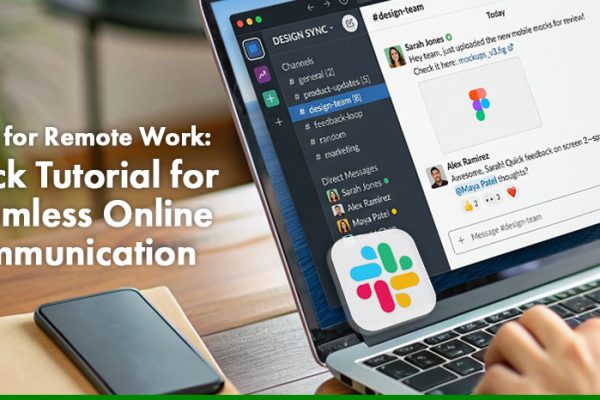
Tools for Remote Work: Slack Tutorial for Seamless Online Communication

Communication is crucial for remote workers. You need to have a platform or software that is easy to use for your employees. After all, it serves as your virtual workspace. How effective it is used will determine the success of your remote work setup.

With COVID19 pandemic, many companies are looking for reliable communication tools. It needs to have messaging, group collaboration, and file sharing. And Slack might be the tool you are looking for.

Creating a Slack Workspace

To create a Slack workspace, you need to register your company email address.

Creating a Slack Workspace-1

It’s easy. Just input your email and click next.

Creating a Slack Workspace-2

You will receive a 6-digit email confirmation.

Creating a Slack Workspace-3

Afterwards, just input the name of your company.

Creating a Slack Workspace-4

Input a project name. It will be used as your first custom #channel. And you’re done!

Channels and Direct Messages

Slack has an intuitive interface. Messages are cleanly divided into two categories: Channels and Direct Messages.

Channels and Direct Messages

Channels are similar to group chats divided into specific projects or purposes. For example, let’s use the image above.

  • The #general chat can be used for general business discussions.
  • The #skills-program chat for brainstorming under that project.
  • And the #random chat for random stuff not related to business (your team needs fun too!).

You can create as many #channels to organize your business projects further. On the other hand, direct messages are quite self-explanatory. They are conversations with specific individuals.

Security: Invite Only Your Team

Unlike platforms, the people inside your “virtual workspace” are only the people in your team. You can’t contact other random people from outside your organization. It’s an advantage good for privacy and data security.

Pin Messages and Files

Sometimes, your employees might miss some important files or directives for a particular project. With Slack, you can pin files and messages in your channels so that they won’t miss it.

Pin Messages and Files

Click the three-dot icon at the rightmost part of the message or file you want to pin. And select Pin to Channel. You can also see the pinned messages when you choose this option.

Remind Function

You don’t want to remind your employees every time they need to do something. Heck, sometimes, you need to be reminded of it as well.

Remind Function-1

Leave nothing to chance by using the “remind function.” This feature allows you to set instant reminders to a specific employee or channel. With a few commands, the Slack bot will automatically remind of the things they have to do.

Remind Function-2

You just need to type /remind @someone or #channel [what] [when]

Remind Function-3

And it will automatically remind you on that date.

Remind Function-4

You can also check all the reminders you have with the command /remind list.

Snooze Notifications

Communication is not without distractions. Those sudden instant messages might stop you from focusing on your task at hand. How can your people be productive when there are constant interruptions?

In Slack, you can actually snooze the notification for a certain amount of time. This is how to do it:

Snooze Notifications

Click the bell icon at the upper left corner of your Slack app. And choose the duration.

Snooze Notifications-2

If you have certain hours you don’t want to be disturbed, you can set them by choosing Do Not Disturb schedule.

In case of emergency messages, you can actually bypass the do not disturb status. Slack gives you an option to go through the snooze if it’s really an emergency.

Search Function

As you integrate your workflow with Slack, there will be many files in your workspace in the long run. What if you need a specific file someone sent 7 months ago? How can you dig through all the messages for the past months?

Worry not. Slack has a powerful search function. It indexes all the files, messages, and integrated cloud storage (like google drive and dropbox links).

Search Function-1

To use this, you can search for files at the upper-right search box with your keywords.

Search Function-2

With the results, you can filter them out further by tinkering at the options on the right side.

Search Function-3

You can also use these shortcuts to find your files faster.

Conclusion

Remote working communication is challenging at first. But with the proper tools, you can smoothly transition into a highly productive remote company. I hope using Slack will get you one step closer to your goals! Cheers!

By submitting this form, you agree to receive SMS or phone communications from Remote Staff, Inc. Message & data rates may apply. Reply STOP to opt out.

Categories
Managing Your Online Team

Tools for Remote Work: Zoom Tutorial for Secure Online Business Meetings

Communication is challenging for first-time remote working teams. You can’t just go to your employees physically to instruct things-to-do or even do catch-up meetings.

And with the COVID-19, many businesses are forced to have remote working setups implemented right now. Most businesses can’t afford to be idle for too long. Contingency plans should be set in place. We need to do something.

Luckily, some tools can help you in achieving your goals. For online business meetings and conferences, Zoom is a powerful and secure tool you can utilize for staff and client meetings. Here’s how to use it:

Creating a Secure Zoom Meeting

First, install the software and signup through the Zoom link. Afterwards, it’s quite easy to use.

Creating a Secure Zoom Meeting

Just choose “New Meeting.”

Creating a Secure Zoom Meeting - 2

And then, you can invite your employees or clients through contacts or emails.

Zoom Call Password

Take note. You don’t want people to hack your zoom conference, especially when you are meeting regarding a sensitive topic.

Creating a Secure Zoom Meeting

You can send the zoom conference link to them by choosing either “Copy the URL” or “Copy Invitation.” Anyone with the Zoom URL will have access to the video session. Make sure that you only give the meeting ZOOM to the person you intend to chat with.

But to have more security, you can use the password feature of zoom. You can do this by choosing “Copy invitation.”

Password Security - 1

And only include the Meeting ID and Password in your message. Delete the zoom link.

Password Security - 2

Your employees need to access the meeting by clicking “Join.”

Password Security - 3

Then input the Meeting ID.

Password Security - 4

Lastly, type the password. It’s quite secure because you need the “Meeting Password” for them to join the meeting.

Brainstorm using a Whiteboard

Whiteboards might be essential for your team. It’s useful to organize the ideas progressively as your team fills the board with multiple relevant ideas for a certain project.

In Zoom, you can also simulate a whiteboard. Just choose the whiteboard feature under the Share Screen button.

Brainstorm with a Whiteboard

Control Your Employee’s Computer Remotely

Sometimes, it’s easier to just do things yourself. Your employees or customers might not know how to operate certain programs. Or probably they can’t find the reason why something is wrong in their computers or applications.

Likewise, you might not know how to fix the problems. So better get one of your employees who can.

Zoom offers remote control functions for you. With simple steps, you can have temporary access to their desktop so that you can fix the problems while teaching them how to prevent it.

You need to change the setting in your Zoom web account.

Control Your Employees Computer Remotely - 1

Go to “In Meeting (Advanced).”

Control Your Employees Computer Remotely - 2

Turn on “remote support.”

And at the lower right corner, you will see the support button. You can give access (You to person A) or request access (You from person B) with the person you are video conferencing with.

Control Your Employees Computer Remotely - 3

Breakout Rooms

Too many people in a video conference might be too overwhelming to manage, especially with the collaboration of ideas. Some may not be keen to talk because there are just too many people.

Zoom has a Breakout Room feature to divide the general room into “breakout rooms” with smaller numbers. Think about it like a class discussion, and you need to break the group down for a group activity. You can even choose to cluster people manually or let Zoom distribute them automatically for you.

It is a good feature if you’re running a business with lectures or classes. Or if you want more effective collaboration with your meetings.

Breakout Rooms

To do this, go to the settings tab and choose the “In Meeting (Advanced)” option.

Breakout Rooms - 2

Click the Breakout Room option under the In Meeting (Advanced) in your settings.

Breakout Rooms

Finally, choose the breakout room option at the lower right part of your window.

Touch Up My Appearance

When working-from-home, you don’t need to prepare that much with your appearance. Just open your laptop, and you can work!

But sometimes, you would want to look extra special when talking to clients or your employees. Worry not! You can use Zoom’s Touch Up My Appearance feature.

This feature enhances your appearance to the screen by smoothing your skin tone.

Touch Up My Appearance - 1

Click the arrow beside the video icon. Choose Video Settings.

Touch Up My Appearance

Afterwards, just click the checkbox for the “Touch Up My Appearance” option. You’re welcome!

Virtual Background

How can you make your video conference more lively? One way is to use a virtual background!

More than our personal appearance, we also want the best background for our video calls. It might be to hide that messy room, or you just want your calls to be interactive. Zoom has a green screen feature available for you!

You can choose or upload images yourself to be your backdrop. Here is how to use it.

Virtual Background

Click “Choose virtual background.”

Virtual Background - 2

And then pick the background of your choice! That’s it!

Conclusion

Communication is challenging in the remote work setup. But with the proper tools, you can take advantage of this new structure. If you accustomed to it well, the force remote setup work might be the new norm for your company after.

By submitting this form, you agree to receive SMS or phone communications from Remote Staff, Inc. Message & data rates may apply. Reply STOP to opt out.